
Important information before downloading
-
Size of installation files: The packages are intentionally large, because they include sample data, local AI models as well as the complete ones Bring runtime environments for Python and Java. This is how mjEdit works offline without any further installations.
-
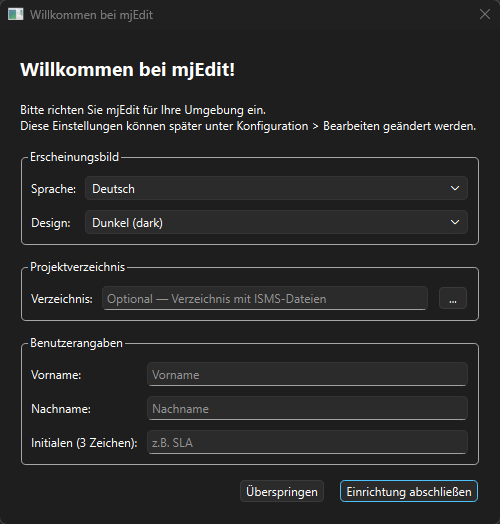
First start - User information: When starting for the first time, mjEdit asks some user information.
-
Initialization takes a short time: mjEdit crashes the first time it is started
Dokumente/mjEditsample files and the directory structure. After creation, the start screen appears.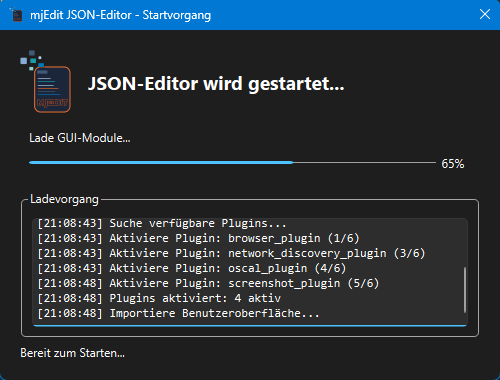
-
OSCAL schema directory: The directory for the OSCAL JSON schemas are requested (Default:
Dokumente/mjEdit/data/020-JSON-SCHEMA/OSCAL/oscal-1.2.2/json/schema). This directory must be selected manually as customer projects can use different paths.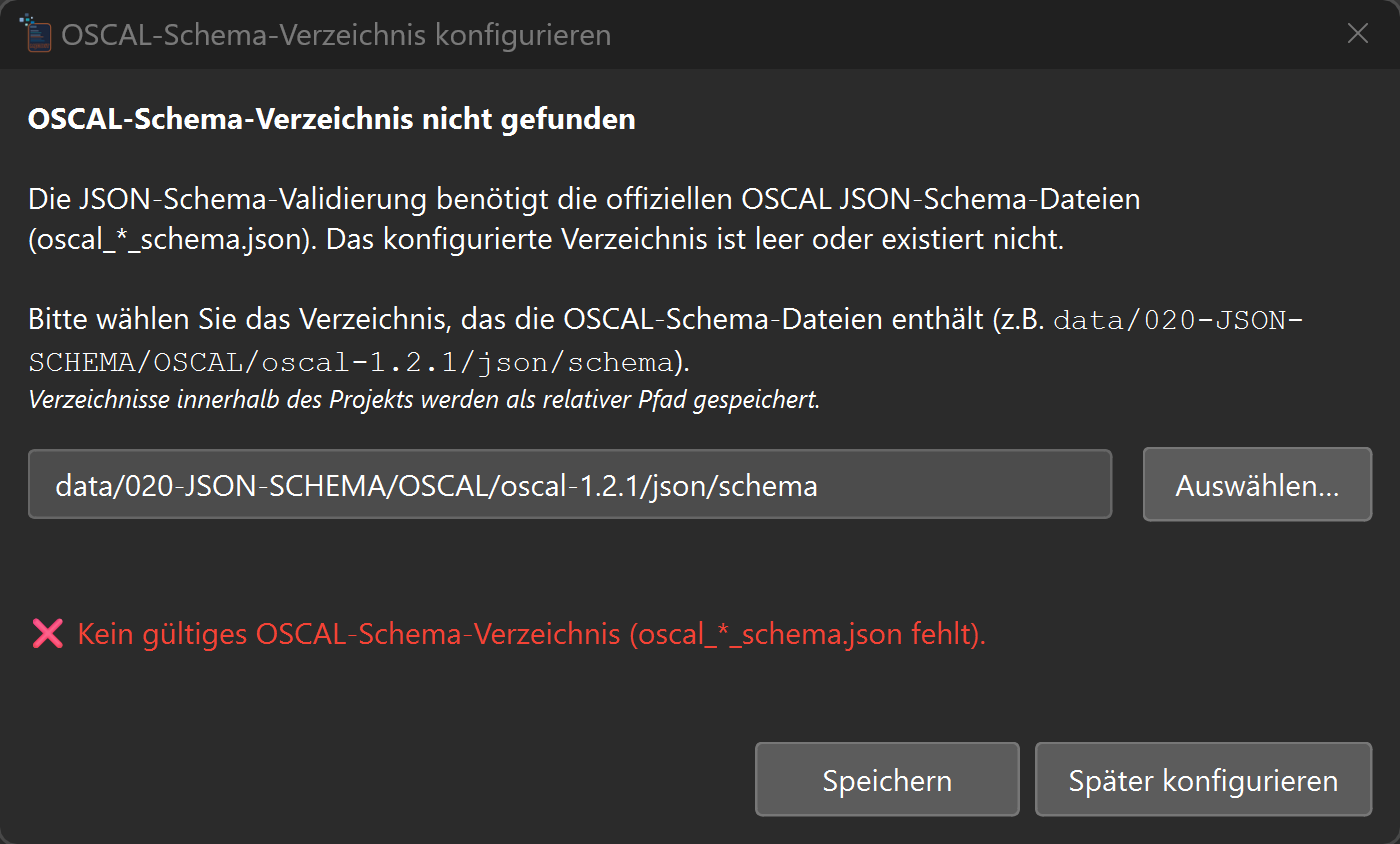
This guide will take you step by step through the installation of mjEdit under Windows 10 / 11 (64-bit). Please read the following first Prerequisites before starting the installation.
Requirements at a glance
- Administrator rights required: The installation takes place under
C:\Program Files\mjEdit\and therefore requires admin rights (UAC confirmation). - Storage space requirement: approx. 2.5 GB. mjEdit supplies the complete ones Runtime environments for Python and Java as well as local AI models and Sample data included so that it works offline without further installations.
- SmartScreen approval required: The installation package is currently not officially signed yet. Windows shows one at startup SmartScreen warning; this must be actively confirmed (see steps 5 + 6). This is not one Security gap, but also the missing signature entry of one unknown publisher.
- Operating system: Windows 10 or Windows 11, 64-bit.
- Password for the MSI file: The MSI in the ZIP is password protected; You will receive the password together with the download link (e.g. via email in the VipTester program).
Step 1 — Open and extract ZIP archive
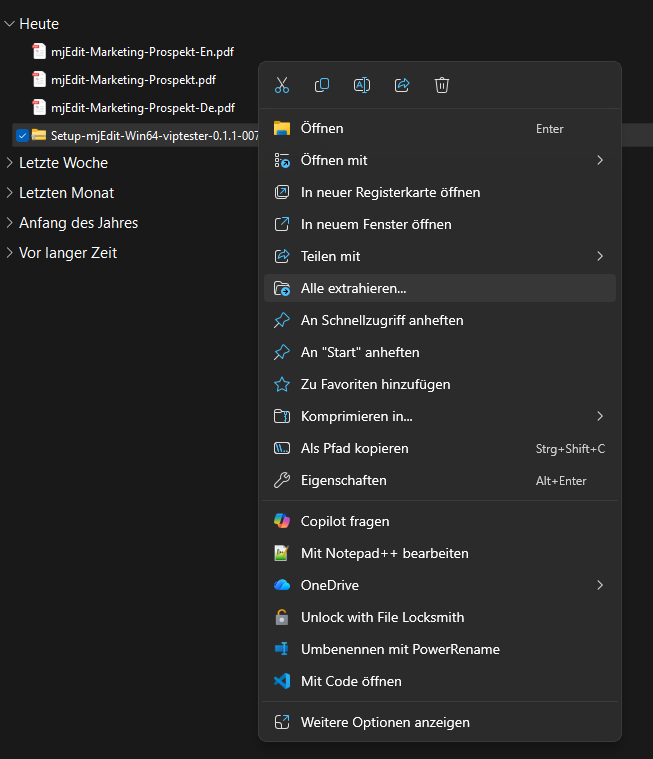
After downloading you will find the setup package
(e.g. Setup-mjEdit-Win64-viptester-0.1.1-007-SLA.zip) in the folder
Downloads. Right-click the file and select
You “Extract all…”.
Step 2 — Select destination folder for extraction
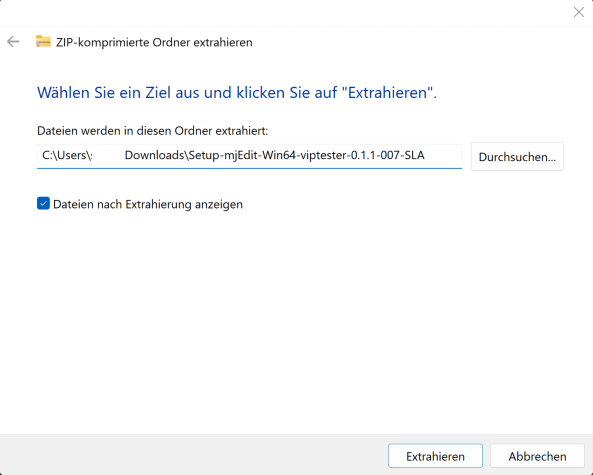
Windows suggests a target folder with the same name. You can do this Apply or adjust using Browse…. Ideally activate “View files after extraction” and click Extract.
Step 3 — Enter password for the ZIP file
The ZIP file is password protected and has been provided to you along with the download link. Enter the password included with the download and confirm with OK, the MSI setup file will then be unpacked.
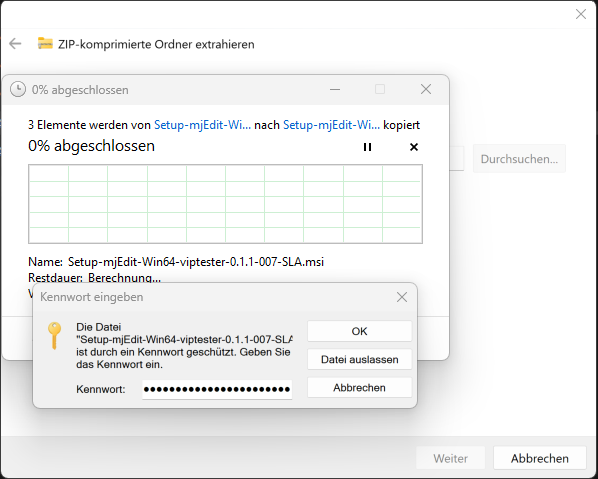
Note: Password protection prevents the ZIP file from being accidentally saved obtained and executed from an unauthorized source. Without the correct one Password cannot unpack the MSI file.
Step 4 — Wait for the extraction to complete
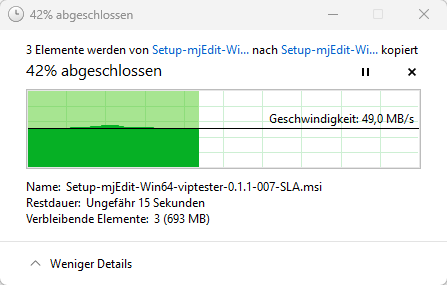
The extraction takes - depending on your hardware - approximately 15-60 seconds. The unpacked data is approximately 700 MB in size.
Step 5 — SmartScreen Alert: Click “More Information.”
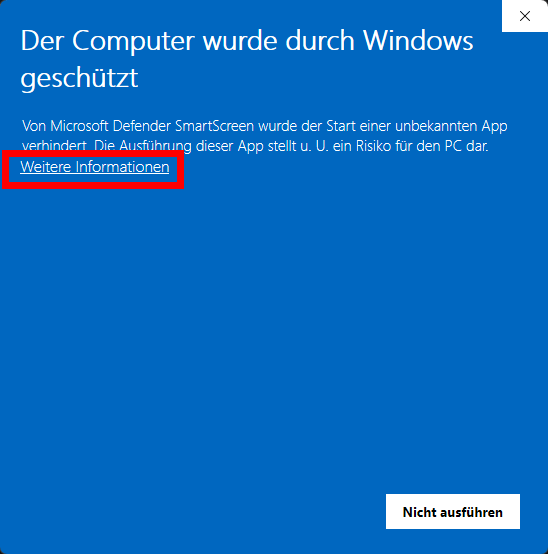
When you start the MSI for the first time, the Windows SmartScreen message appears “The computer has been protected by Windows”. At first it’s just that Do Not Execute button visible.
Important: Click on the “More Information” link. Only then will the “Run anyway” button appear.
This warning appears because the installation package is not yet official is signed** and the publisher is therefore classified as “unknown”. It is not a threat — the clearance must be active must be confirmed so that the installation can continue.
Step 6 — Confirm “Run anyway”.
After clicking on “More information” SmartScreen shows the name of theApp and the note “Publisher: Unknown publisher”. Click Click “Run anyway” to start the installation.
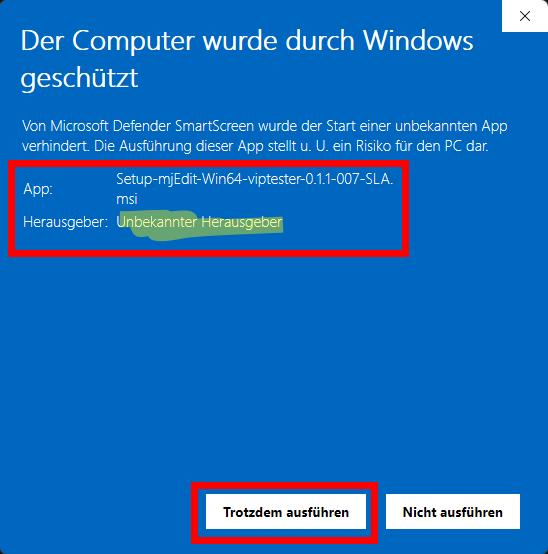
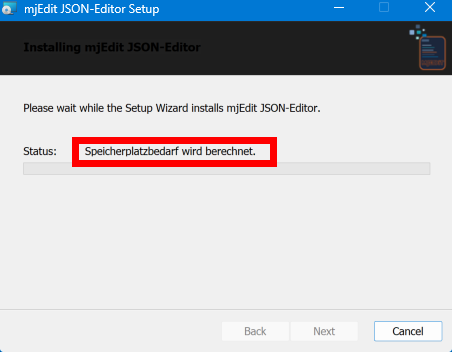
Step 7 — Setup wizard is being prepared
The mjEdit JSON Editor Setup Wizard starts. While the status “Calculating storage space requirements” is displayed, Windows checks it available disk space. The Next button is at this stage greyed out.
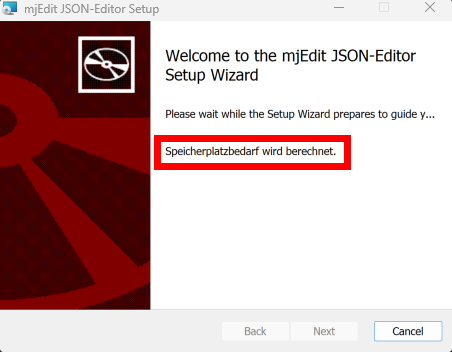
Step 8 — Setup Wizard Welcome Page
Once the calculation is complete, Next is activated. Click Click Next to continue.
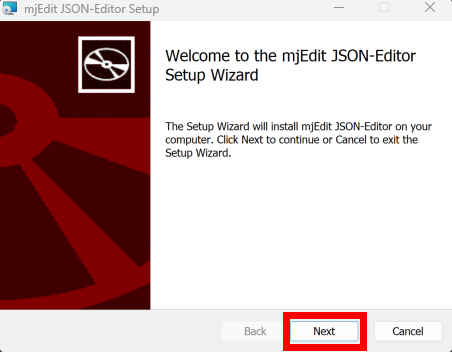
Step 9 — Choose app language
Select the interface language for mjEdit — German or English. This setting can be changed later at any time in mjEdit Configuration → Change settings.
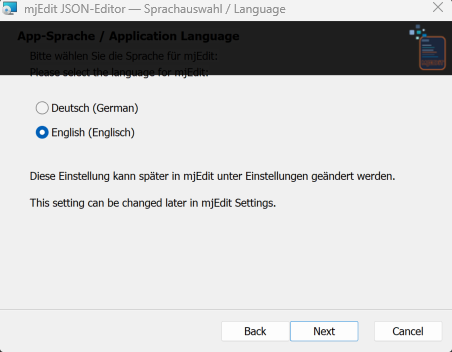
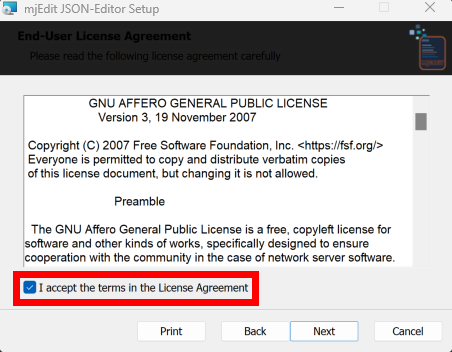
Step 10 — Accept license terms (AGPL-3.0).
mjEdit is licensed under the GNU Affero General Public License v3 (AGPL-3.0) published. Read the conditions, activate “I accept the terms in the License Agreement” and click Next.
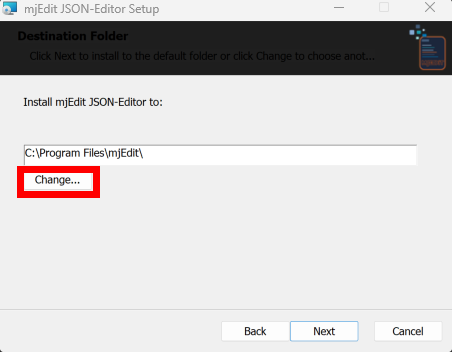
Step 11 — Confirm installation directory
By default, mjEdit is installed after C:\Program Files\mjEdit\.
This is the recommended setting. If necessary you can over
Change… choose an alternative path.
Step 12 — Start installation (admin rights required)
Click Install. The blue UAC shield on the button indicates that Windows is now asking for administrator rights - confirm Answer the UAC query with Yes.
Admin rights are mandatory because mjEdit
C:\Program Files\… is installed and shortcuts/file
Creates assignments at the system level.

Step 13 — Preparation: Check storage space
After UAC confirmation, the actual installation process begins with the final storage space check.
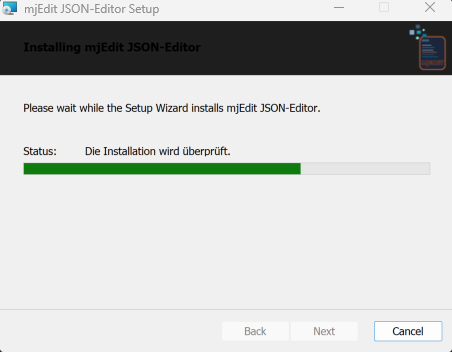
Step 14 — Files are copied
The installation now copies approx. 2.5 GB of program files, Runtime environments (Python, Java) and local AI models. Depending on System, this step takes 2-5 minutes.
Step 15 — Installation Complete & First Boot Configuration
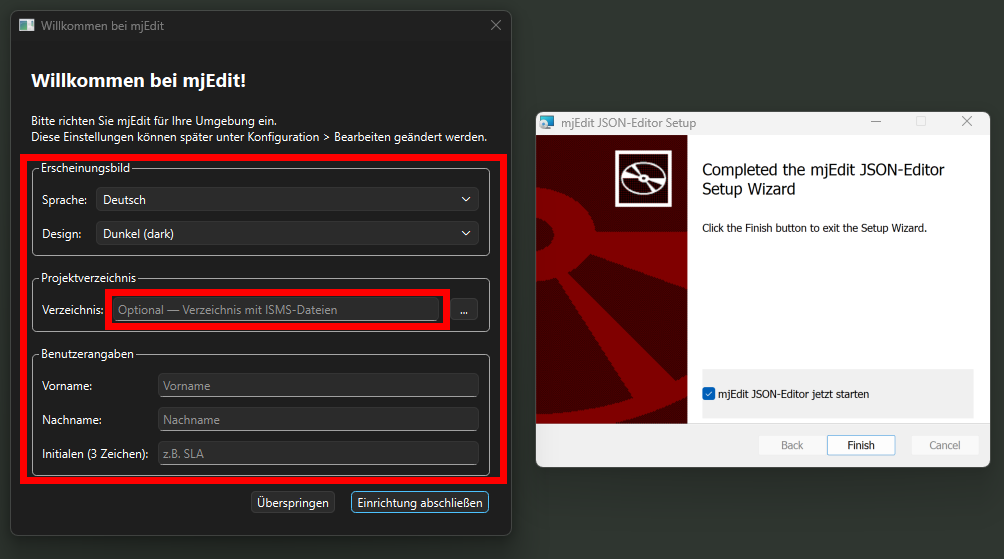
Once the installation is complete, the final page will appear “Completed the mjEdit JSON-Editor Setup Wizard”. Leave that Option “Start mjEdit JSON editor now” activated and click Click on Finish.
When you start it for the first time, the dialog “Welcome to mjEdit” appears with the the following setup options:
- Appearance — Language (German / English) and design (Light/Dark/System).
- Project directory (optional) — Directory with ISMS files.
- User Details — First name, last name and
Initials (3 characters, e.g.
SLA).
Important - Initials (USR abbreviation): The initials entered here
are later used as author abbreviations in OSCAL revision notes and in the
config.json used. Please be clear in your
Organization coordinated 3 characters.
All settings can be changed later Adjust Configuration → Edit.
After installation
- When started for the first time, mjEdit sets the
Dokumente\mjEditDirectory structure and example files. - The OSCAL JSON schema directory is then queried
(Default:
Dokumente\mjEdit\data\020-JSON-SCHEMA\OSCAL\oscal-1.2.2\json\schema). - Further information can be found on the Download Page.
Problem solutions (FAQ)
“Run anyway” is not displayed. First click on the “More information” link in the SmartScreen message (see step 5). Only then does it appear button.
Password for the ZIP file is missing. The password is provided along with the download link. Should are missing, please contact us using the contact form to us.
UAC query does not appear.
Make sure your Windows account has administrator rightsverfügt. Ohne Admin-Rechte lässt sich mjEdit nicht nach
C:\Program Files\ installieren.
Nicht genügend Speicherplatz. Die Installation benötigt ca. 2,5 GB auf dem Systemlaufwerk. Bitte geben Sie ggf. Speicherplatz frei, bevor Sie die Installation starten.